
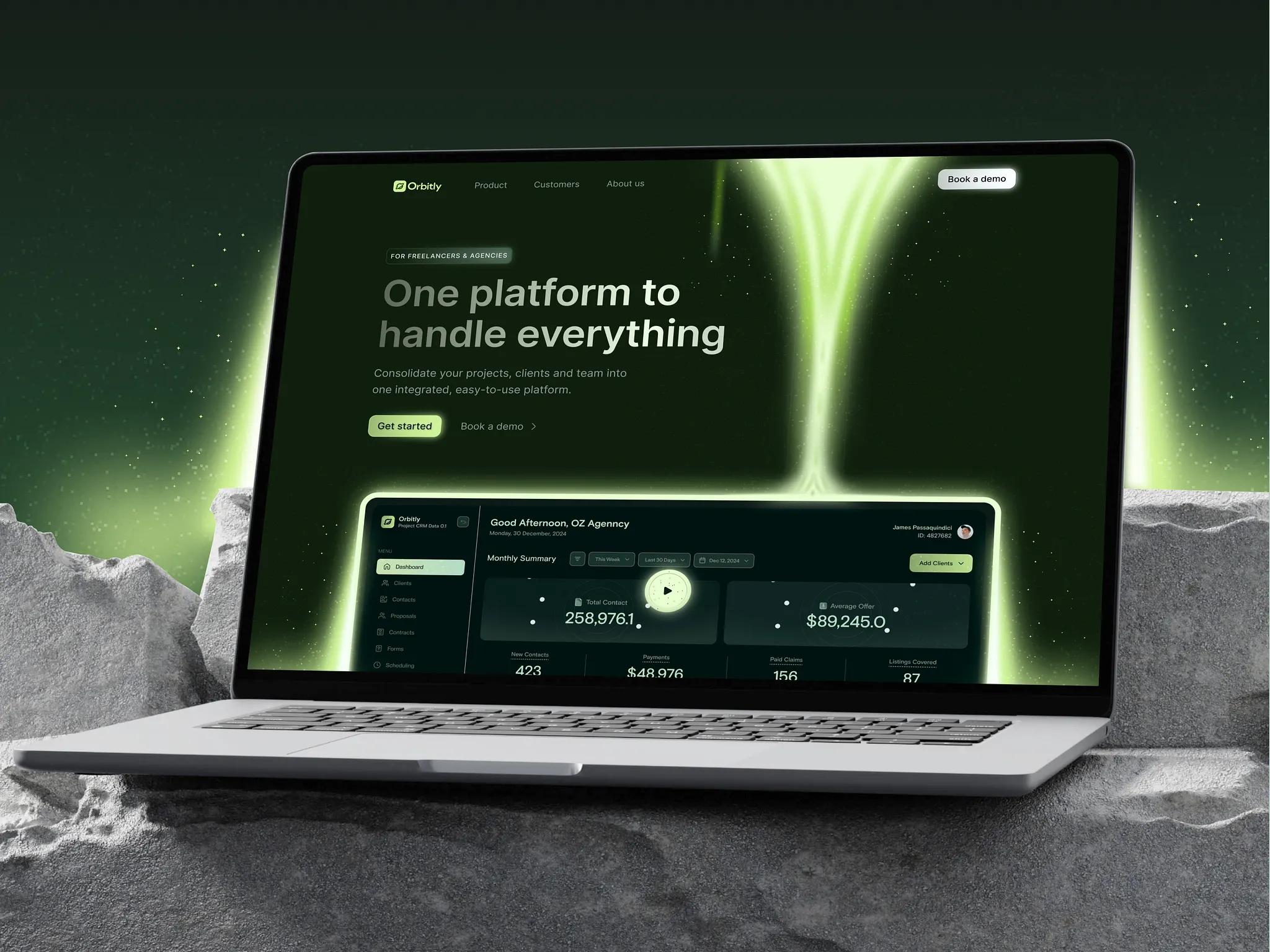

Dark Mode Done Right: A UI/UX Framework for Accessible, Eye-Friendly Interfaces
Dark mode has evolved from a developer niche to a user expectation. Over 80% of users enable dark mode when available – but most implementations are painful to use.
Bad dark mode = eye strain, low contrast, and frustrated users.
Good dark mode = reduced fatigue, better focus, and a premium feel.
Here's how to design dark mode that users actually keep enabled.
Sin #1: Pure black backgrounds (#000000)
Pure black creates too much contrast with white text, causing eye strain and "halation" (text bleeding effect).
Fix: Use dark gray (#121212 or #1E1E1E). Samsung and Google proved this reduces eye fatigue by 30–40%.
Sin #2: Keeping light mode colors
That vibrant blue that pops on white? It vibrates painfully on dark backgrounds.
Fix: Desaturate and lighten your color palette. A color that works in light mode needs a dark‑mode counterpart.
Sin #3: Forgetting depth and shadows
Dark interfaces lose visual hierarchy because shadows don't work the same way.
Fix: Use elevation layers (surface 1, surface 2, surface 3) with subtle borders instead of shadows.
1. Typography on dark backgrounds
Element
Light mode
Dark mode
Body text
#333333 on white
#E0E0E0 on #121212
Secondary text
#666666
#9E9E9E
Disabled text
#999999
#6B6B6B
Rule: Never use pure white (#FFFFFF) for body text – it's too harsh. Use off‑white (#E0E0E0 or #F1F1F1).
2. Color adaptation rules
For each color in your light palette, create a dark equivalent:
css
/* Light mode */
--primary: #3B82F6;
--surface: #FFFFFF;
--border: #E5E7EB;
/* Dark mode */
--primary-dark: #60A5FA; /* slightly lighter */
--surface-dark: #1F2937;
--border-dark: #374151;
Pro tip: WCAG requires 4.5:1 contrast for normal text. Test your dark mode colors with a contrast checker.
3. Surface elevation system
Instead of shadows (which don't work well on dark), use a z‑index surface system:
Elevation
Light mode
Dark mode
Surface 1 (cards)
White, shadow
#1E1E1E, border #2C2C2C
Surface 2 (modals)
White, larger shadow
#252525, border #333333
Surface 3 (dropdowns)
White, largest shadow
#2D2D2D, border #3D3D3D
4. Accessibility checklist for dark mode
- Body text contrast ≥ 4.5:1
- Large text contrast ≥ 3:1
- Focus indicators are visible (not just color change)
- Links are underlined or have sufficient contrast
- Error messages use both color AND an icon
tsx
// Simple theme toggle with localStorage
function ThemeToggle() {
const [theme, setTheme] = useState('light');
useEffect(() => {
const saved = localStorage.getItem('theme');
if (saved) setTheme(saved);
}, []);
const toggle = () => {
const newTheme = theme === 'light' ? 'dark' : 'light';
setTheme(newTheme);
localStorage.setItem('theme', newTheme);
document.documentElement.classList.toggle('dark');
};
return <button onClick={toggle}>Toggle {theme} mode</button>;
}
Best practice: Respect the user's system preference using prefers-color-scheme as the default, then let them override.
Proper dark mode isn't just aesthetic – it's functional:
- Reduces eye strain during night work (50% less fatigue by some measures)
- Saves battery on OLED screens (up to 40% power reduction)
- Improves focus by reducing peripheral glare
- Feels premium – users associate dark mode with quality apps